
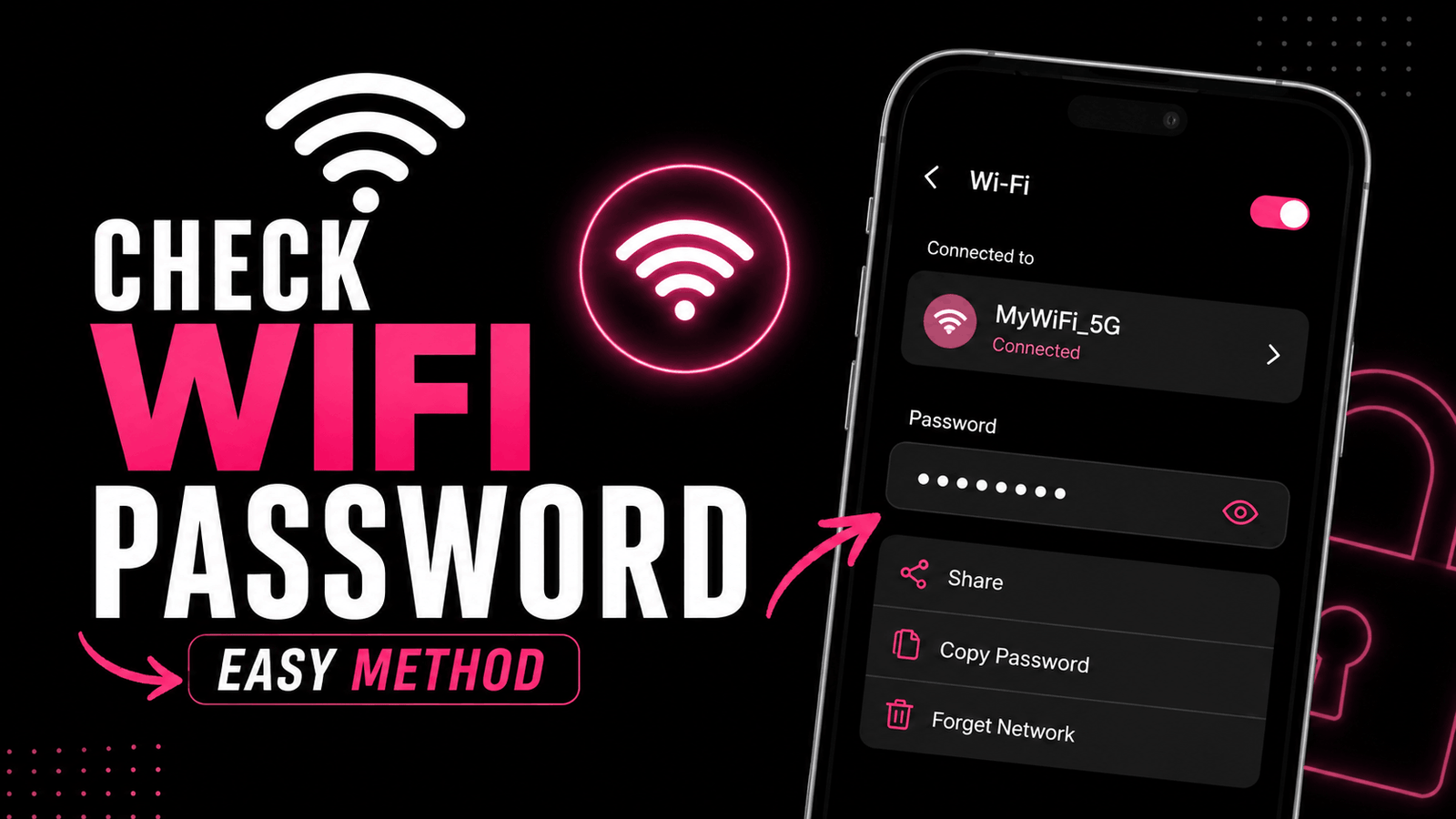
I still remember the day when my cousin came to my house with a new phone. He wanted to connect to my WiFi but I had completely forgotten the password. I knew all my devices were already connected so I thought it would be easy to find it again. That simple task turned into almost an hour of trying different settings and searching through my router. After that day I learned several easy ways to view a saved WiFi password and I have been using those methods ever since.
If you are in the same situation then you are not alone. Most people connect a device once and never type the password again. Months later when someone asks for the password or when you buy a new phone you suddenly realize you have no idea what it is.
The good news is that there are safe and simple ways to see a saved WiFi password on different devices. You do not need any risky apps or fake password generators. You only need access to a device that is already connected to the network or access to your router settings.
This guide explains everything in simple words so you can find your WiFi password without confusion.
When You Might Need Your WiFi Password
There are many situations where finding your WiFi password becomes important.
You buy a new phone.
You reset your laptop.
A friend visits your home.
You install a smart TV.
You connect a security camera.
You replace your old router.
I have experienced almost every one of these situations. The most common one for me is connecting a new phone after upgrading from an older device.
Before You Start
There are two important things to remember.
Only view the password for a WiFi network that belongs to you or one that you have permission to access.
Never try to access someone else’s network without permission because that is not ethical and may also be against the law.
How to Show WiFi Password on Android
Android has become much better over the past few years. Most modern Android phones make it very easy to view a saved WiFi password.
Open Settings.
Open Network and Internet or WiFi depending on your phone.
Tap the connected WiFi network.
Select Share.
Verify your identity using your fingerprint face unlock or PIN.
The password will appear on the screen along with a QR code.
I tested this on a recent Android phone and it worked in less than a minute. The QR code also made it easy for another phone to connect without typing anything.
Some older Android phones may not show the password directly. In that case you may need to check your router settings instead.
How to Show WiFi Password on Windows
If your Windows laptop is already connected to the WiFi network then finding the password is very easy.
Open Control Panel.
Open Network and Sharing Center.
Click your connected WiFi network.
Select Wireless Properties.
Open the Security tab.
Enable Show Characters.
Your WiFi password will now appear.
I have used this method many times especially after setting up a new desktop computer. It has always been one of the quickest options.
How to Show WiFi Password on Mac
Mac computers also allow you to view saved WiFi passwords.
Open the Passwords app or Keychain Access depending on your version of macOS.
Search for your WiFi network.
Open the network details.
Verify your identity.
The password will be displayed.
Apple has made this process much easier in recent versions of macOS.
How to Show WiFi Password on iPhone
If your iPhone is running a newer version of iOS then viewing a saved WiFi password is simple.
Open Settings.
Open WiFi.
Tap the information icon beside the connected network.
Tap Password.
Authenticate using Face ID Touch ID or your passcode.
The password will be shown.
This feature has saved me several times when helping family members connect their new devices.
Find the Password from Your Router
Sometimes none of your devices are connected anymore. In that case the router is your best option.
Open a web browser.
Enter your router address.
Sign in using the administrator account.
Open the Wireless section.
Look for the WiFi settings.
Your password should be listed there.
Different router brands have different layouts but the process is usually similar.
If you never changed the default login information then check the label on the router. Many routers include the default username password and WiFi details on the sticker.
Check the Sticker on the Router
Many internet providers ship routers with a factory WiFi password.
Turn the router around.
Look for a sticker.
You may see the network name and password printed there.
This is the easiest method if you never changed the original password.
Share WiFi Without Telling the Password
Sometimes you do not want to read out a long password.
Modern Android phones and iPhones allow you to share WiFi using a QR code.
The other person only scans the code.
Their device connects automatically.
I use this method almost every time someone visits my home because it is much faster than typing a complicated password.
Common Mistakes People Make
One mistake is downloading random password recovery apps from unknown websites.
I tried one years ago out of curiosity and it was full of ads and asked for unnecessary permissions. It never showed my WiFi password.
Another mistake is resetting the router too quickly.
Many people think resetting the router is the only solution. In reality a reset removes your custom settings and you may have to set everything up again.
Another common mistake is forgetting to save the new password after changing it.
Whenever I update my WiFi password I save it in a trusted password manager so I never have to search for it again.
Tips to Keep Your WiFi Safe
Use a strong password that is difficult to guess.
Avoid simple passwords like password or one two three four five six seven eight.
Change the default router administrator password.
Update your router firmware whenever updates become available.
Do not share your WiFi password with people you do not trust.
Use WPA2 or WPA3 security if your router supports it.
These simple habits make your home network much safer.
What If Nothing Works
If you cannot find the password on any connected device and you cannot access the router settings then you still have one option.
Reset the router.
After the reset you can configure a new WiFi name and password.
Keep in mind that every connected device will need to reconnect using the new password.
Only use this method when other options have failed.
Real Life Example
A friend recently called me because he had bought a new smart TV. His old phone had the WiFi saved but he had forgotten the password years earlier.
Instead of resetting the router I asked him to open the WiFi settings on his Android phone and use the Share option.
Within a minute the password appeared on the screen.
The TV was connected almost immediately.
That small trick saved him from resetting his entire home network.
Frequently Asked Questions
Can I see the WiFi password without being connected
Yes if you have access to a device that previously saved the network or if you can log into the router settings.
Can I use third party apps
Most third party apps are unnecessary. Built in features on Android Windows Mac and iPhone are safer and more reliable.
Is it legal to view a WiFi password
Yes if the network belongs to you or you have permission from the owner.
What should I do after changing my password
Reconnect all of your devices and save the new password in a secure password manager.
Finding a WiFi password is much easier than most people think. After helping family members friends and even setting up my own devices many times I have learned that the built in options are almost always enough. Whether you use Android Windows Mac iPhone or your router settings you can usually recover the password in just a few minutes. Save the password somewhere secure after you find it and you will avoid the same problem the next time you buy a new device or welcome guests into your home.