I was sitting next to my cousin who has a gaming phone and every time he adjusted the volume this glowing colorful bar slid across his screen. Mine right next to his looked like something from a decade ago. Plain gray bar. Boring white background. Same thing every single Android phone has shown for years.
That comparison bugged me way more than it probably should have. I went home that night and spent almost two hours going through different apps trying to get that same RGB effect on my own phone. Some worked great. Some barely worked at all and one actually messed up my volume controls temporarily until I uninstalled it. This article is everything I learned from that late night rabbit hole.
What an RGB Volume Button Actually Is
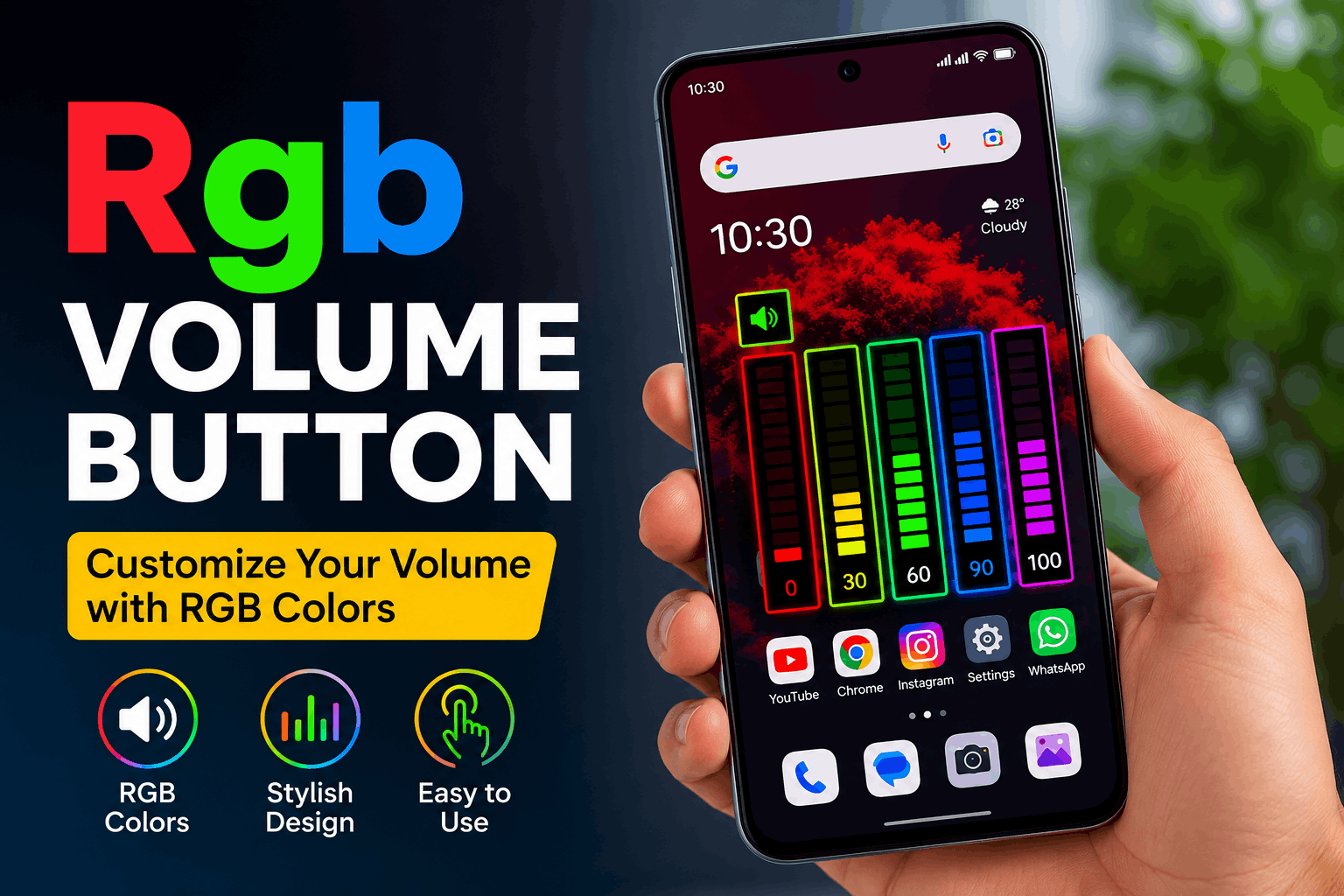
If you have never seen this before it is basically a replacement for the plain volume slider that pops up when you press the physical volume buttons on your phone. Instead of the default gray or white bar you get glowing neon colors animated light effects and sometimes even a completely custom shape for the slider itself.
This does not change how your volume actually works. It is purely visual. Your phone still gets louder or quieter the same way it always did. The only difference is what it looks like on screen while you are adjusting it.
Gamers seem to love this style the most since it matches the whole RGB lighting trend that started with gaming keyboards and mice years ago. But honestly it just looks fun even if you are not into gaming setups at all.
Apps I Actually Tested on My Phone
I tried several apps over that one long night and a few more over the following week just to see which ones held up over time.
RGB Volume Styles This became my personal favorite out of everything I tried. It gave me a huge number of preset themes ranging from simple neon glows to full animated color transitions. Setup took a few minutes since it needed permission to display over other apps which makes sense since that is literally what the volume slider replacement needs to do.
Volume Panel by LeeDroid This one felt more like a serious customization tool rather than just a fun visual gimmick. It let me adjust the exact slider style colors gradients rounded corners and even panel position on the screen. I liked that it included a volume locking feature too which stops accidental changes from headphones or other apps.
Assistive Volume Button This app took a slightly different approach. Instead of just changing how the built in volume popup looks it adds a small floating button on the edge of your screen that opens sliders when tapped. One of the built in styles is actually labeled RGB alongside options like Android iOS and MIUI style. I liked this for phones where the physical volume buttons are a bit worn out or hard to press since you can control everything through the floating button instead.
Neon RGB Volume Panel This one focused heavily on the glow animation itself. Dark theme gaming theme and a cyber style theme were the standout options. It looked great honestly but I did notice slightly more battery drain compared to the other apps after using it for a full day.
Out of all of these RGB Volume Styles ended up staying on my phone the longest since it balanced good looks with barely noticeable battery impact.
Step by Step: Setting This Up Without Messing Anything Up
Here is exactly what I now recommend after going through some early mistakes myself.
Step 1: Download from Play Store only Customization apps that need permission to draw over your screen and modify system level popups should always come from a trusted source. A random APK from an unknown site asking for this same level of access is a bigger risk than it seems worth for a visual effect.
Step 2: Grant the display over other apps permission This is required for the RGB slider to actually appear on top of whatever you are doing. The app will usually prompt you directly to Settings to enable this the first time you open it.
Step 3: Pick a theme and preview it before locking it in Most of these apps let you preview the animation before fully applying it. Take the extra thirty seconds to actually watch it play out rather than picking based on a small thumbnail image.
Step 4: Adjust slider position and size if the app allows it I initially left mine at default size and found the slider a bit too large covering part of my screen during video calls. Shrinking it slightly through the app settings fixed this completely.
Step 5: Test it across different apps Try adjusting volume while watching a video during a call and while gaming. Some RGB slider apps behave differently depending on what app is open in the foreground and it is worth catching this early rather than being surprised later.
The One Mistake That Actually Caused a Problem
I want to be honest about something that went wrong during my testing. One of the lesser known apps I tried from outside the Play Store ended up conflicting with my phone’s default volume controls. My physical buttons stopped working properly for a few minutes and I had to force close the app and restart my phone to fix it.
This taught me to stick with apps that have a decent number of reviews and are actually available through the Play Store rather than chasing something slightly more unique from a random website. The visual upgrade is genuinely not worth risking your actual volume functionality over.
A Small Detail That Made a Big Difference
Something I did not expect going into this was how much the slider style actually matched my overall phone theme. I already used a dark wallpaper with a subtle purple accent and picking an RGB theme with similar purple and blue tones through Volume Panel made everything feel intentional rather than random.
If you already have a specific aesthetic going on your phone it is worth picking colors that complement that instead of just grabbing whatever preset looks flashiest in the preview.
Common Mistakes to Avoid
Downloading from unknown sources for a purely visual feature The risk genuinely outweighs the reward here. Stick to the Play Store for anything modifying system level popups.
Ignoring battery impact over time Some of these apps run a background service to detect volume button presses. Check your battery usage settings after a day or two to see if anything is drawing more power than expected.
Picking a slider size that blocks important parts of your screen Test this during video calls and games specifically since these are the situations where a poorly sized slider becomes genuinely annoying rather than just decorative.
Forgetting to check compatibility with your specific phone brand Samsung Xiaomi and stock Android phones sometimes handle these overlay permissions slightly differently. What works perfectly on one brand might need an extra permission step on another.
Final Thoughts
Comparing phones with my cousin that day turned into a genuinely fun little project once I actually understood what was involved. An RGB volume button will not change how your phone functions in any real way but it adds a small personal touch that makes using your phone just a little more enjoyable every single time you adjust the sound.
Pick an app with solid reviews from the Play Store test the slider size across your daily apps and choose colors that actually match your existing phone setup rather than just the flashiest option available. It is a small change but it genuinely makes your phone feel more like yours.