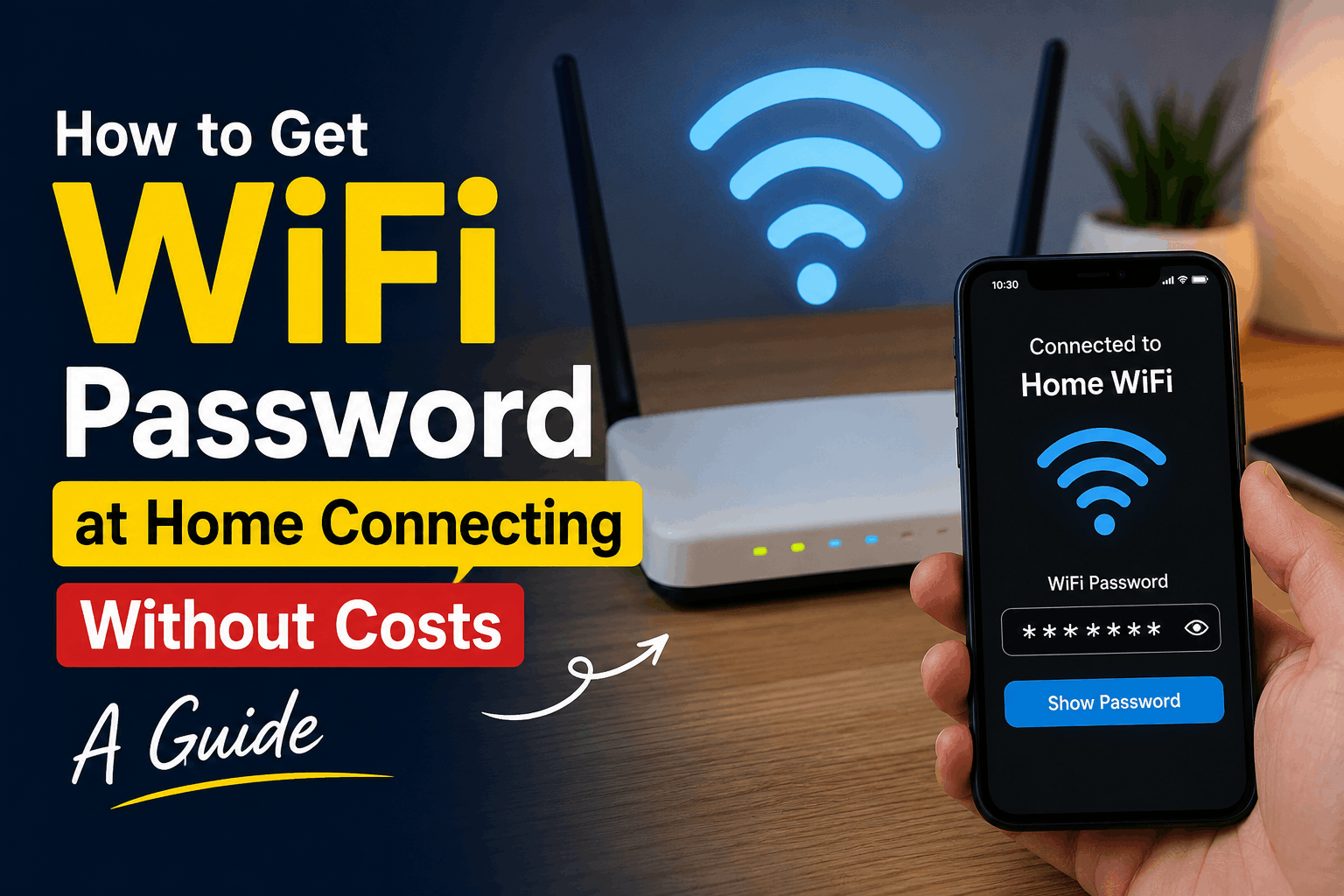
Last year I moved into a new apartment and my landlord had already set up the internet before I arrived. Great for convenience. Terrible when I actually needed to connect my second phone and had absolutely no idea what the password was. The sticker on the router had faded so badly I could only read half the characters.
I spent almost forty minutes trying random guesses before I gave up and actually figured out the proper way to recover it. Turns out there are several legitimate ways to find or recover a WiFi password you already have rights to use without calling your internet provider and waiting on hold for an hour.
This article covers exactly what worked for me along with a few honest ways to keep your home internet costs down without doing anything shady or against your provider’s terms.
First Things First: This Is About Your Own Network
Before going further I want to be clear about something. Everything here is about recovering access to a WiFi network you already own or have permission to use. Trying to get into someone else’s network without their permission is not something I am going to cover and honestly is not something worth doing anyway. Most modern routers detect unusual devices pretty quickly and it can cause real problems for you legally depending on where you live.
What I am sharing instead is how to actually find the password sitting right there on your own devices or router when you have simply forgotten it or lost the sticker like I did.
Where I Actually Found My Password
After my failed guessing attempts I realized my old phone was still connected to the network from months earlier when I had visited a friend who lived in the same building complex on a shared connection. Android and iPhones both store saved WiFi passwords and there are ways to view them without needing to remember anything.
On Android If you already have a device connected to the network go to Settings then Network and Internet then WiFi. Tap on the network name you are already connected to and there is usually an option to view the password often shown as a QR code you can scan with another phone to join instantly. Some phones show the actual password in plain text under Share option.
On iPhone If your iPhone is already connected to the network go to Settings then WiFi and tap the small info icon next to the network name. From there you can view or share the password directly to another Apple device using AirDrop or through a QR code prompt if both devices are signed into the same Apple ID family sharing group.
Through the router itself This is honestly the most reliable method and what I ended up using. Every router has an admin panel accessible through a browser. Typing something like 192.168.1.1 or 192.168.0.1 into your browser address bar usually opens this panel. The exact address is often printed on the router itself along with default login details unless someone changed them.
Step by Step: Recovering Your Password Through the Router
Here is exactly what I did after realizing my other methods were not working.
Step 1: Find the router IP address Flip your router over and look for a sticker showing something like Default Gateway or Router IP. Mine showed 192.168.1.1 clearly printed near the bottom.
Step 2: Open a browser and type the IP address Type this directly into your browser address bar not a search engine. It should open a login page for your router admin settings.
Step 3: Log in using admin credentials Most routers use something simple like admin for both username and password by default unless changed. This information is usually printed on the same sticker as the IP address.
Step 4: Navigate to Wireless Settings Depending on your router brand this might be labeled Wireless Security or WiFi Settings. Your current password should be visible here in plain text.
Step 5: Write it down somewhere safe this time I learned my lesson after this whole ordeal and now keep a small note in my phone with the actual password saved properly instead of relying on a sticker that fades over time.
What Happened When I Tried the Default Password Route
One mistake I made early on was assuming the default admin login would still work since I figured the previous tenant probably never changed it. It actually did work in my case but this is not something to count on. Many internet providers now set unique admin passwords per household specifically to prevent this kind of easy access from previous tenants or random guests. If the default does not work you will need to contact your provider for the actual admin credentials tied to your account.
Cutting Down Home Internet Costs Without Cheating the System
Since the topic mentions connecting without extra costs I want to share what has genuinely helped me lower my home internet expenses the honest way.
Bundle your plan properly When I called my provider about a billing issue they mentioned a bundle discount for adding a mobile line to the same account. This shaved a decent amount off my monthly bill that I had no idea existed until I actually asked.
Use your provider’s official hotspot network Companies like Xfinity offer free access to their own branded hotspots for existing customers through apps like Xfinity WiFi. This meant I could use public hotspots around my city without burning through mobile data since I was already a paying customer.
Check for community or public WiFi apps Apps like WiFi Map show crowd sourced public WiFi locations that people have shared voluntarily including cafes libraries and public spaces. This helped me a lot during days I worked outside my apartment without touching my mobile data plan at all.
Ask your building management directly Some apartment complexes and shared housing situations include internet as part of the rent or offer a discounted shared connection. I only found this out after asking directly rather than assuming I needed my own separate plan.
Common Mistakes People Make With Home WiFi
Never changing the default admin password Leaving this as admin and admin makes it incredibly easy for anyone with brief access to your router to change settings or view your network password.
Losing the original router sticker Take a photo of your router sticker the day you set it up. This alone would have saved me forty minutes of frustration that day.
Sharing your WiFi password too widely Every guest you give your password to is another person who could accidentally or intentionally slow down your connection or access shared devices on the network like printers or smart home gadgets.
Assuming public hotspots are always safe Free public WiFi is convenient but avoid logging into anything sensitive like banking apps while connected to an open network without a proper VPN.
Not updating your router firmware This has nothing to do with passwords directly but an outdated router can have security gaps that make unauthorized access from outside far more likely over time.
Final Thoughts
That forty minute password hunt taught me something simple. Most WiFi problems people deal with are not actually about hacking or bypassing anything. They come down to forgotten passwords faded stickers or simply not knowing where to look on devices you already own.
Take five minutes today to check your router admin panel note down your actual password somewhere safe and look into whether your provider offers any bundle discounts you might be missing out on. Small steps like these save you the exact kind of frustration I went through that day standing in front of a router with a barely readable sticker.