
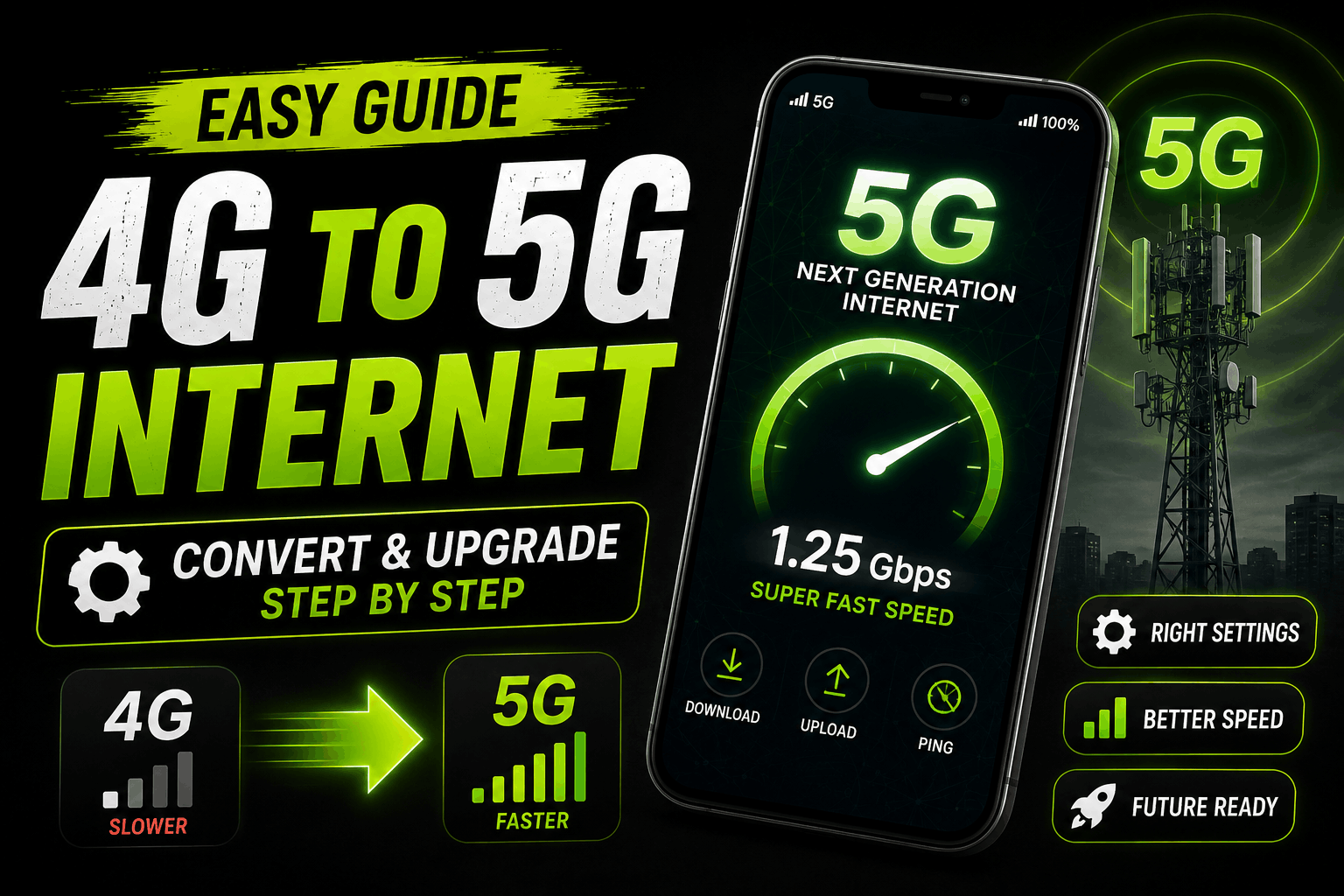
Last year my nephew visited and saw “4G” sitting at the top of my phone screen. He laughed and said “bro just convert it to 5G, there are apps for that.” I genuinely didn’t know if he was joking. Turns out he wasn’t — he’d seen videos on YouTube claiming you could flip a switch or download an app and suddenly your 4G connection becomes 5G.
I was curious enough to actually test this out properly instead of just dismissing it. I spent about two weeks trying different “5G converter” apps, digging through my phone settings, and even calling my carrier’s support line to ask directly. Here’s everything I found out, including the honest answer nobody selling those apps wants you to hear.
The Short, Honest Answer First
You cannot convert a 4G-only phone into a 5G phone using an app, a settings tweak, or some hidden trick. I know that’s not the exciting answer people are searching for, but it’s the truthful one, and I’d rather tell you that upfront than waste your time.
5G isn’t a setting you switch on. It’s a completely different radio technology that requires specific hardware inside your phone — called a 5G modem or chipset — to actually receive 5G signals from a tower. If that hardware isn’t physically inside your device, no app in the world can make it appear.
Think of it like this: you can’t turn a regular bicycle into a motorcycle by installing an app on it. The engine has to actually be there.
What Happened When I Actually Tested the “5G Converter” Apps
Because I wanted to give this a fair shot, I downloaded three different apps from the Play Store that had names like “4G to 5G Converter” and “5G Speed Booster.” All three had thousands of downloads and suspiciously good ratings.
Here’s what actually happened:
The first app just showed a fake animation of a signal bar filling up while displaying “5G Enabled!” — my actual network indicator in the status bar never changed. Still said 4G/LTE the entire time.
The second app asked for a ridiculous number of permissions, including access to my contacts and storage, which a network setting app has zero legitimate reason to need. I uninstalled it within two minutes.
The third one just redirected me to a page full of ads before “activating” a setting that, when I checked my actual network settings afterward, had changed nothing at all.
I ran a speed test before and after using each app. Every single time, the numbers stayed basically identical — because nothing about my phone’s actual hardware or network connection had changed.
So How Do You Actually Get 5G?
After giving up on the fake shortcuts, I called my carrier and had an actually useful conversation. Here’s what genuinely determines whether you get 5G:
Step 1: Check if your phone has a 5G-capable chipset. This is the big one. Phones released from around 2020 onward often have 5G support, but plenty of budget models still don’t. You can check this by going to your phone’s settings, searching “network,” and seeing if a 5G option even exists as a toggle. If there’s no 5G toggle anywhere in your settings, your phone’s hardware simply doesn’t support it, and no app changes that.
Step 2: Check your SIM card. Older SIM cards, especially ones issued years ago, sometimes don’t support 5G bands properly. I had to visit my carrier’s store and get a new SIM even though my phone itself was 5G-capable. It took about ten minutes and was free.
Step 3: Check your carrier plan. Some prepaid or older postpaid plans don’t include 5G access even if your phone and SIM both support it. I had to explicitly ask my carrier to confirm my plan included 5G, and had to switch plans to get it.
Step 4: Check actual 5G coverage in your area. This one surprised me the most. Even with a fully 5G-ready phone, SIM, and plan, I still saw 4G most of the time because my carrier simply hadn’t rolled out 5G towers in my neighborhood yet. I used my carrier’s own coverage map (most major carriers publish one on their website) to check this, and sure enough, 5G was only available a few kilometers away near the city center.
Step 5: Manually select the network mode if needed. On Android, going into Settings > Network & Internet > SIM > Preferred Network Type sometimes shows an option like “5G/4G/3G auto” versus “4G only.” I had mine accidentally set to 4G only from a previous troubleshooting session months earlier. Switching it to “5G auto” was the actual fix in my case — worth checking before assuming you need new hardware.
A Real Example That Made This Click for Me
My friend and I have nearly identical phone models, both technically 5G-capable. She gets a strong 5G signal at her apartment; I barely get it at mine, four kilometers away. Same phone, same carrier, completely different experience — because 5G towers are still being rolled out gradually and don’t cover every area evenly yet, even in decently developed cities.
That’s when it really sank in for me that this isn’t a phone settings problem most of the time. It’s an infrastructure and coverage problem that no app can fix.
Common Mistakes People Make Chasing “5G Conversion”
- Downloading random “converter” apps. At best they do nothing. At worst, they’re loaded with excessive permissions or ads that can compromise your privacy.
- Assuming a 5G icon means guaranteed fast speeds. 5G coverage quality varies a lot by area — sometimes 4G in a strong-signal zone is actually faster than a weak 5G connection.
- Not checking their SIM card. People assume their phone is the issue when sometimes it’s just an outdated SIM.
- Forgetting to check their actual plan. Paying for a phone that supports 5G doesn’t automatically mean your specific plan includes it.
- Giving up after one failed check. I almost did this myself before realizing my network mode setting was quietly stuck on “4G only.”
Final Thoughts
I get why the “convert 4G to 5G” search is so tempting — who wouldn’t want a free instant upgrade? But after actually testing it out myself, I can say confidently there’s no shortcut here. It comes down to real hardware inside your phone, your SIM, your specific plan, and whether your carrier has actually built out 5G towers near you.
If you’re on 4G and want 5G, the honest path is checking those four things one by one instead of downloading another app promising a magic fix. It took me a phone call and a few settings checks to sort mine out — way less dramatic than I expected, but at least it was based on something real.